Using S3 Browser v13.1.1 to Access the CEPH S3 A-DROP Bucket
S3 Browser is a Windows client that provides an easy graphical interface for managing Amazon S3 storage. Version 13.1.1 includes a clean UI, multiple-account support, high‑speed transfers, ACL tools, bucket policy management, and many improvements. [s3browser.com]
This guide explains how to install, configure, and use S3 Browser to access and browse your S3 buckets for the A-DROP project.
1. Installation
- Download S3 Browser Freeware 13.1.1 from the official site:
https://s3browser.com [s3browser.com] - Install and launch the application.
2. First Launch & Adding an S3 Account
When you start S3 Browser for the first time, it prompts you to create a new account.
Steps
- Open Add New Account dialog.
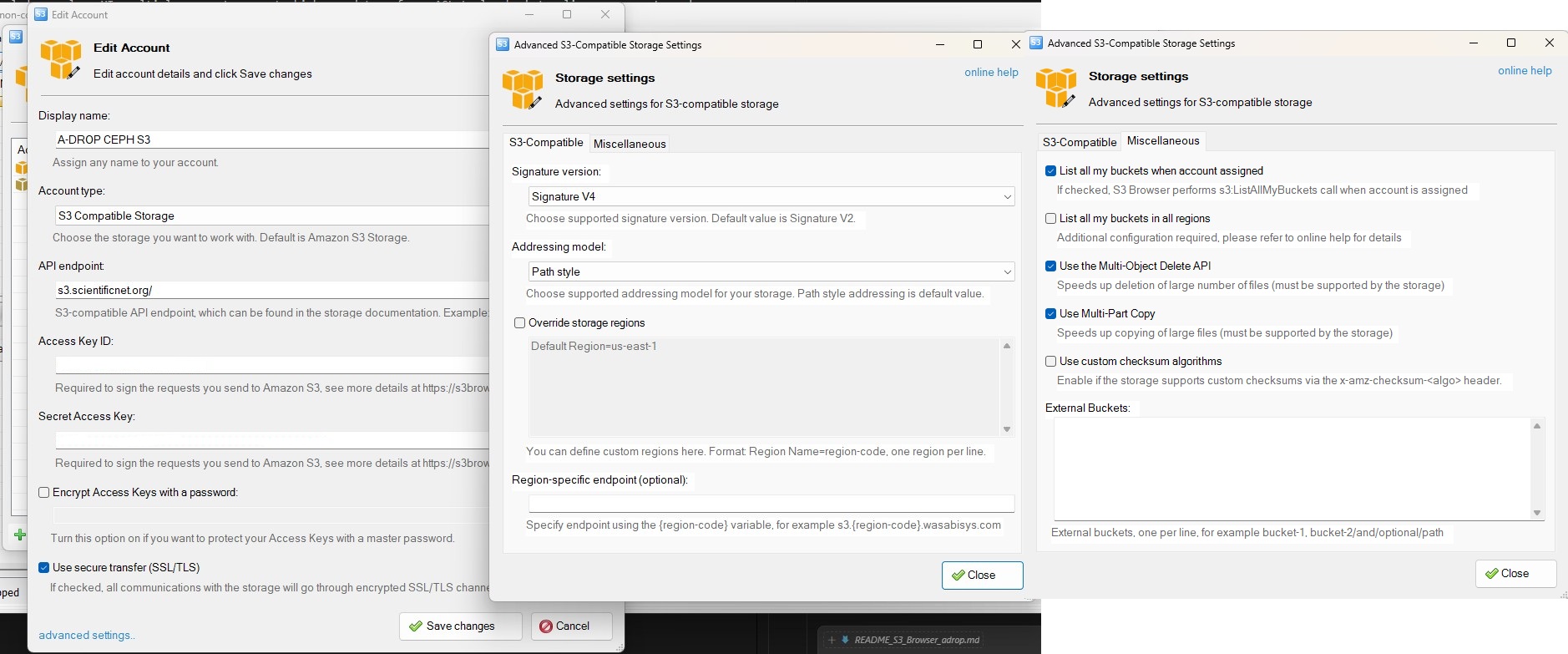
- Fill in the following fields:
- Account Name – Any friendly name.
- Account Type – Choose S3 Compatible Storage
- Access Key ID and Secret Access Key – These authenticate your S3 requests.
- (Optional)
- Enable Encrypt Access Keys with a Password for additional security.
- Enable Use secure transfer (SSL/TLS) to encrypt all communications.
- Click on advanced settings and be sure that all the settings are as shown in the picture
- Close all the windows.
- Click Add New Account.
After this, S3 Browser loads your S3 environment.
3. Creating or Selecting an S3 Bucket
All files in S3 are stored inside buckets. If you do not yet have a bucket, you must create one before uploading files. In S3 Browser, you can:
- Create new buckets
- Delete buckets
- Manage existing buckets
(Supported features include versioning, ACLs, bucket policies, lifecycle rules, encryption, and more.)
4. Browsing an S3 Bucket
To browse a bucket:
- Start S3 Browser.
- Click on the bucket you want to view.
All files and folders will appear in the main table.
Columns displayed
- File – File name
- Size – Object size
- Type – File type
- Last Modified – Upload timestamp
- Storage Class – e.g., Standard, Standard-IA, OneZone-IA, Intelligent‑Tiering, Glacier, Deep Archive, etc.
An address bar at the top shows your current folder path and allows fast navigation across nested directories.
5. Uploading & Downloading Files
S3 Browser allows:
- Drag‑and‑drop uploads
- High‑speed multipart uploads
- Pausing and resuming large transfers (up to 5 TB)
- Reliable downloads with integrity checks
You can also sync folders, use exclusion filters, or manage file versions.
6. Managing Permissions and Security
S3 Browser v13.1.1 supports:
- Editing ACLs (bulk and individual)
- Bucket policies
- Server‑side encryption (SSE)
- IAM-based access
You can also share buckets with other S3 users using the built‑in sharing wizard.
Summary
S3 Browser v13.1.1 provides a powerful, user‑friendly interface for accessing and managing Amazon S3 buckets. With its straightforward setup, fast transfers, versioning support, security tools, and continuous improvements, it is a reliable Windows client for both beginners and advanced users.